
Help
Voting guide
How to sign in, fill in your organization’s ballot, and keep your receipt. Most members finish in a few minutes.
Before you start
OCA emails a voting invitation to your organization’s primary contact. You need two things from it.
- Your Membership ID.
- Your Unique voting code. It has 32 letters and numbers in groups of four, such as 7F3A-91C2-0B5D-…
Your organization has one voting package. It covers every contested section your organization belongs to, so some members vote in more than one section. Mechanical and electrical contractors, for example, vote in both of those sections. A section with no more candidates than seats is acclaimed: nobody votes in it and no code is sent for it.
Your deadline is in the invitation and at the top of your ballot. All times are Ottawa time.
Voting for your organization
The primary contact can vote, or can give the membership ID and code to someone else, such as a colleague. That person is a proxy. They sign in the same way and tick the proxy box.
- Whoever submits first uses the vote. After that, the code no longer works.
- Everyone who signs in gives their own name and email. These do not need to match the primary contact’s details.
- The confirmation email always goes to the primary contact, even when a proxy votes.
Sign in
Open vote.oca.ca. The sign-in panel is on the right of the home page, or below the introduction on a phone.
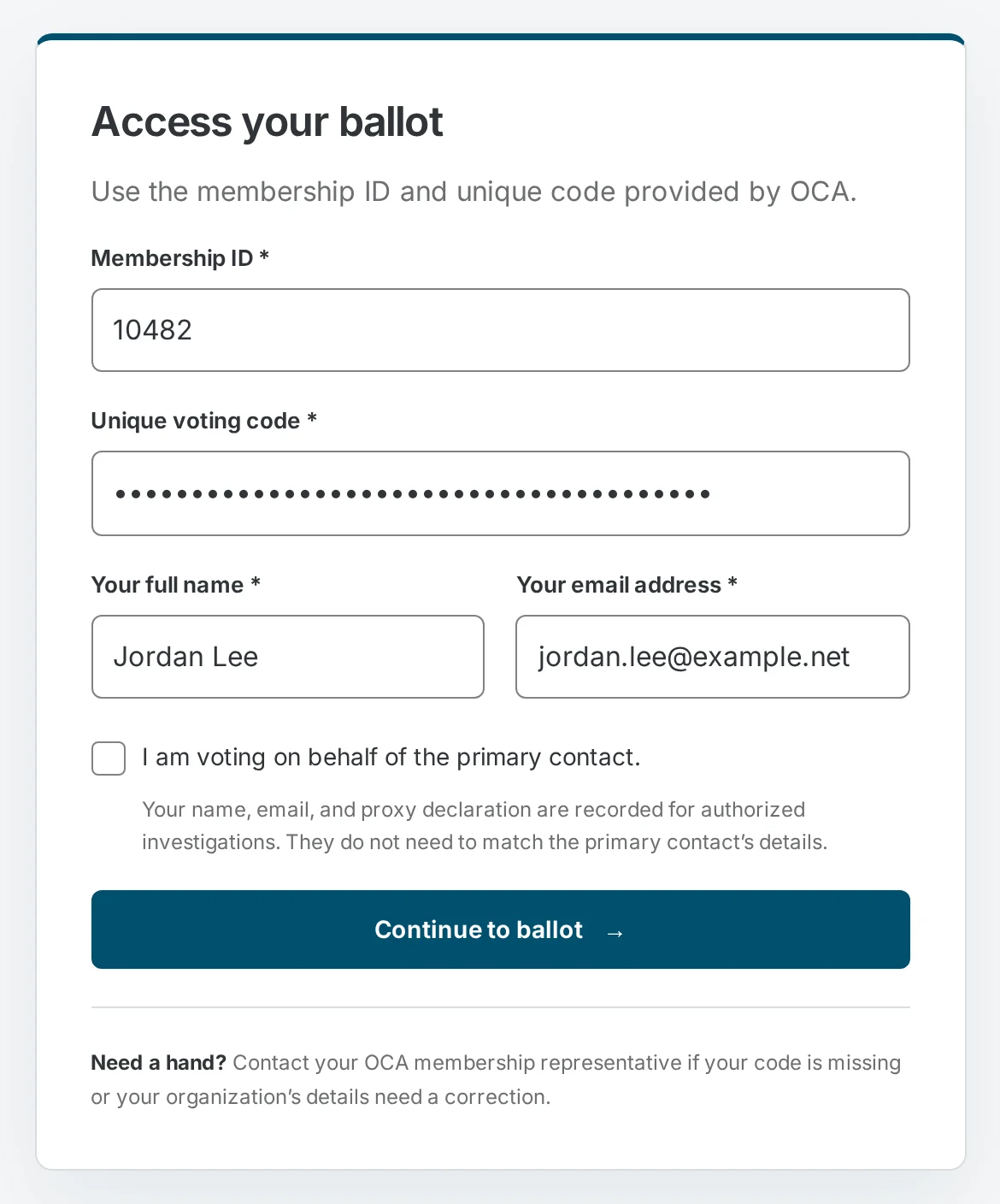
Enter your Membership ID as it appears in the invitation.
Enter your Unique voting code. You can leave out the dashes, and small letters work too.
Enter Your full name and Your email address. Use your own details, even if you are not the primary contact.
If you are voting for the primary contact, tick I am voting on behalf of the primary contact.
Select Continue to ballot.
Rank your choices
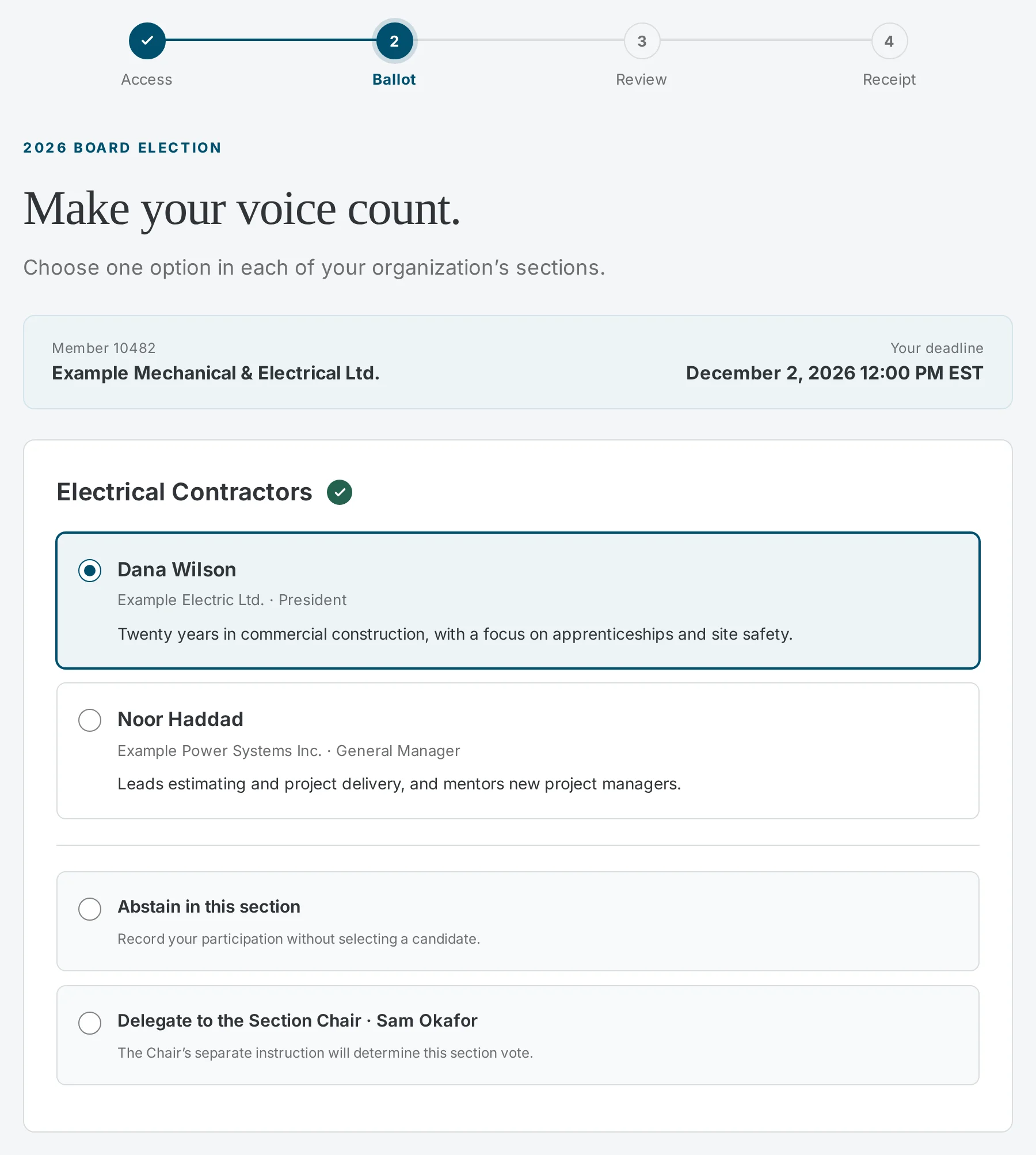
Your ballot shows one section at a time, with your deadline at the top. Mechanical and electrical contractors see Mechanical first, then Electrical. Each candidate shows their firm, their position, and a short profile; candidates marked <strong>Slate candidate</strong> are listed first.
- Keep Rank the candidates selected, then select a candidate to make them your next choice. Rank as many or as few as you like. Your first choice counts first; later choices count only if earlier ones are elected or eliminated.
- Use Move up and Move down to change the order, Remove to take a candidate out of your ranking, or Clear ranking to start again.
- Select Delegate to the Section Chair to let the Chair named beside it rank for you. You will not rank anyone in that section.
- Select Abstain in this section to take part without ranking anyone.
Select <strong>Continue to the next section</strong> when more sections follow, or <strong>Review my selections</strong> on the last one. The counter above the list shows how many candidates you have ranked.
Review and submit
The review page lists your ranking, delegation, or abstention for each section, in your order. All sections are submitted together.
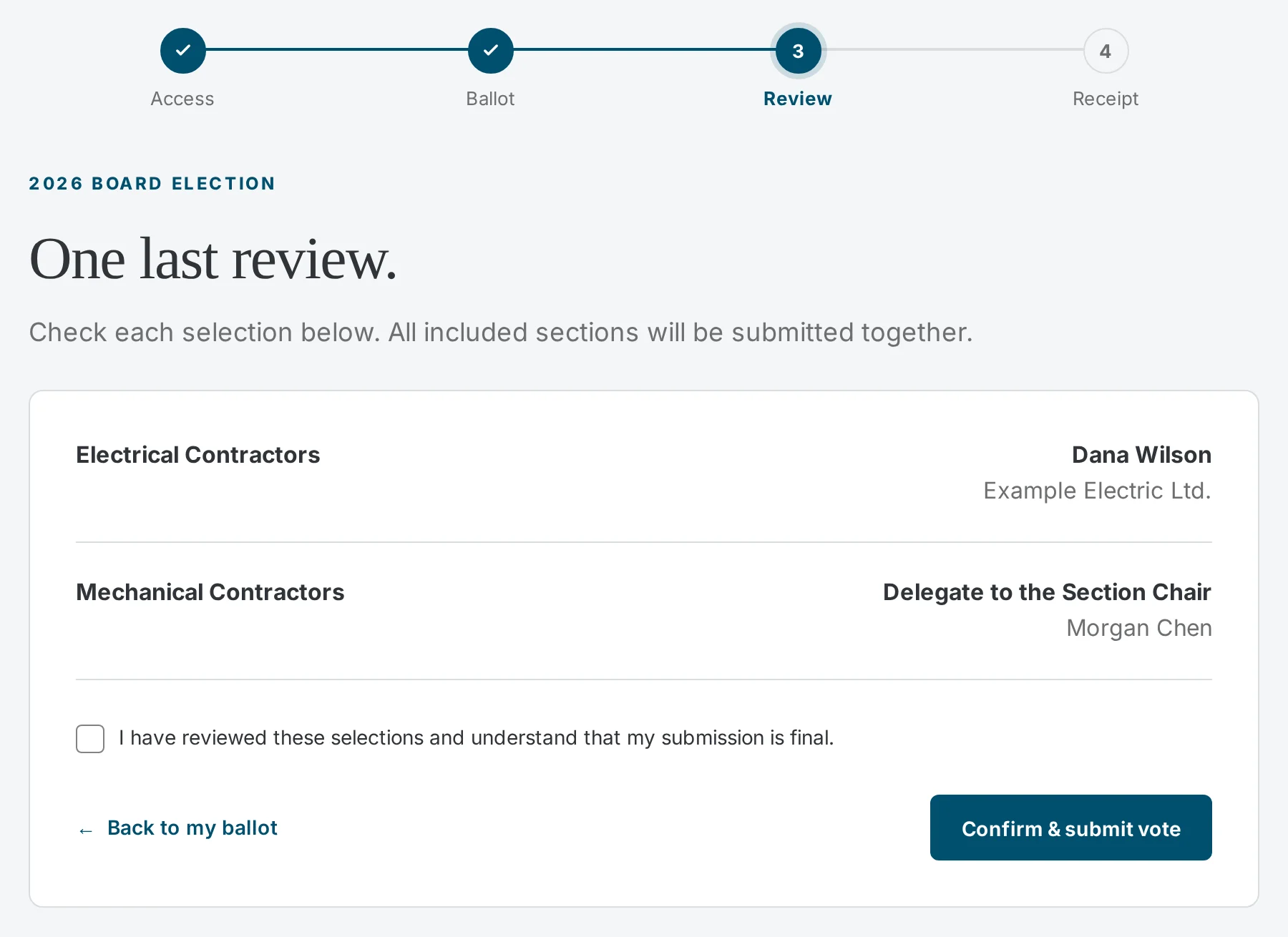
Check each section. To change one, select Change beside it, or Back to my ballot. Your other sections stay as they are.
Tick I have reviewed these selections and understand that my submission is final.
Select Confirm & submit vote.
Keep your receipt
When your vote is accepted, the page says <strong>Your vote is received.</strong> and shows a receipt code.
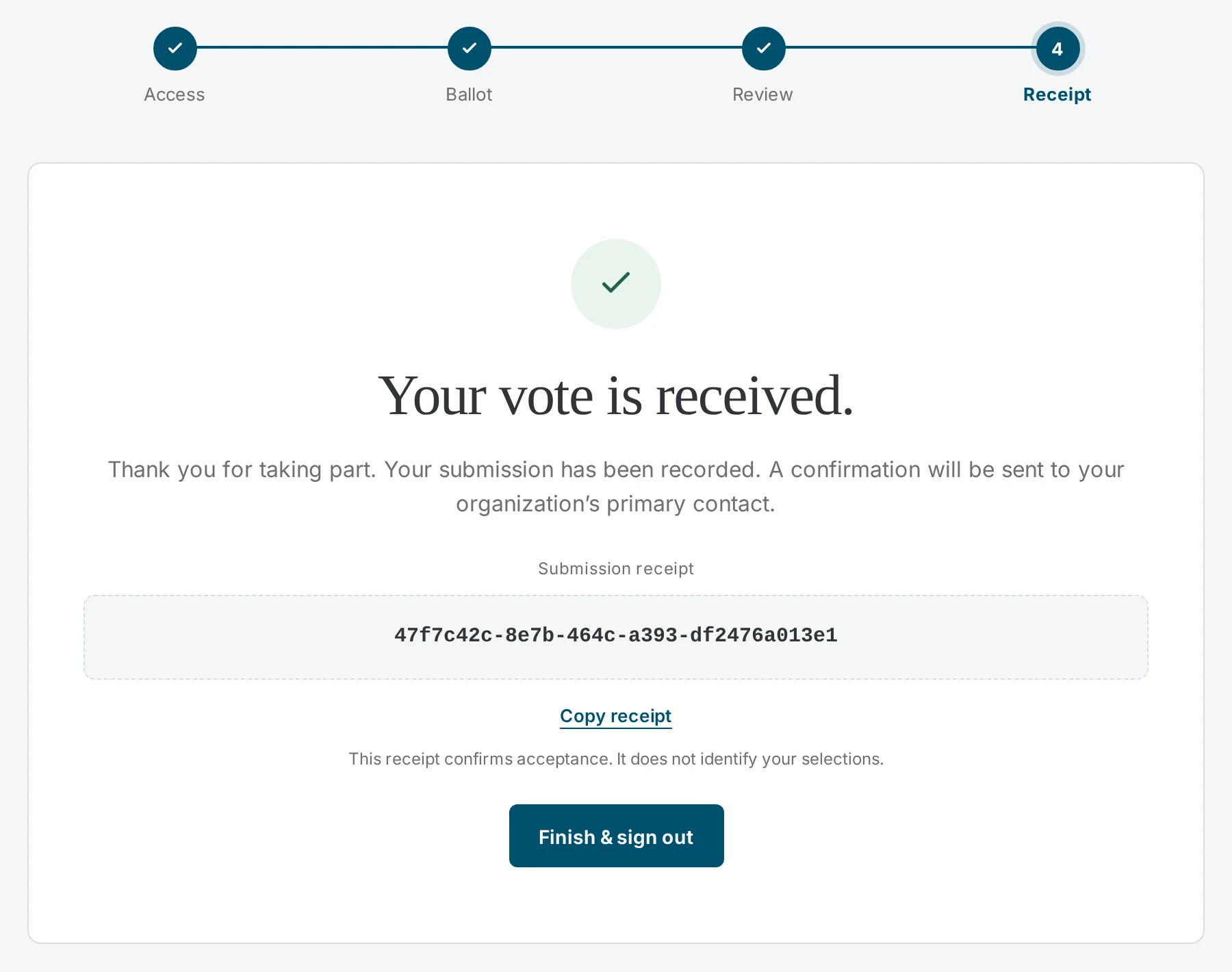
- Select Copy receipt to copy the code, then paste it somewhere safe.
- OCA emails a confirmation to your organization’s primary contact.
- Select Finish & sign out when you are done.
Who can see your vote
OCA election administrators can see whether your organization voted, and the section totals after counting. They cannot see how a named member voted.
Section Chairs never see who delegated to them or how many delegations they received.
Stega runs this site for OCA. Its investigators can review a specific vote only when a correction is requested, and every review is logged.
Troubleshooting
- The sign-in form is greyed out.
- Voting has not opened yet. OCA sends the codes and voting dates to each organization’s primary contact.
- The site cannot verify my details.
- Check the membership ID and code against your latest invitation. A code stops working when a newer one is sent, after your organization votes, and after the deadline.
- The page says Too many attempts.
- There were too many sign-in attempts in one minute. Wait a minute, then try again.
- I am back on the sign-in page.
- For your security, you are signed out after 20 minutes without activity, or two hours after signing in. Nothing was submitted. Sign in again and make your choices again.
- The page says This page has expired.
- The page was open too long. Return to the home page and sign in again.
- The site says the ballot has changed.
- OCA added or withdrew a candidate while you were voting. Return to your ballot, check the current candidates, and review again.
- We lost our code, or never received it.
- Contact OCA before the voting deadline. For security, OCA cannot look up a code. It can send a new one to the primary contact, which cancels the old one. Every code stops working at the deadline.
- Someone voted for our organization without permission.
- Contact OCA right away. Before the deadline, OCA can cancel the submission and send a new code to the primary contact.
- A candidate was added after we voted.
- Your vote stays final. Candidates may be added while nominations are open.
- How is a ranked ballot counted?
- Each section elects a set number of seats. A ballot first counts for its first choice. A candidate who reaches the quota is elected and any surplus passes on to the next choices; when nobody reaches it, the candidate with the fewest votes is eliminated and those ballots move to their next choice. Ranking more candidates never hurts your first choice.
- We did not get a code for one of our sections.
- That section is acclaimed: no more candidates stood than there are seats, so there is no vote in it.
Still need help?
Contact your OCA membership representative if your code is missing or your organization’s details need a correction.